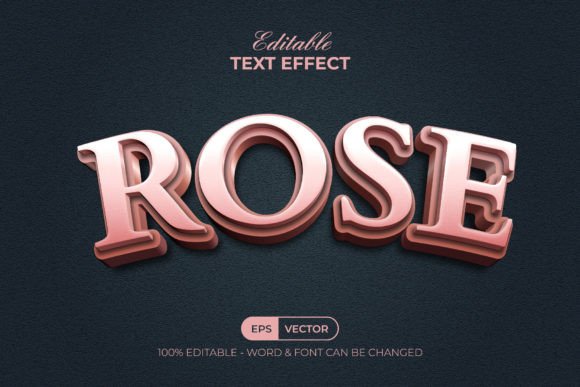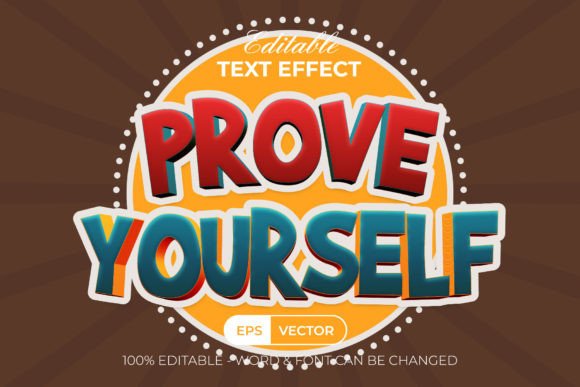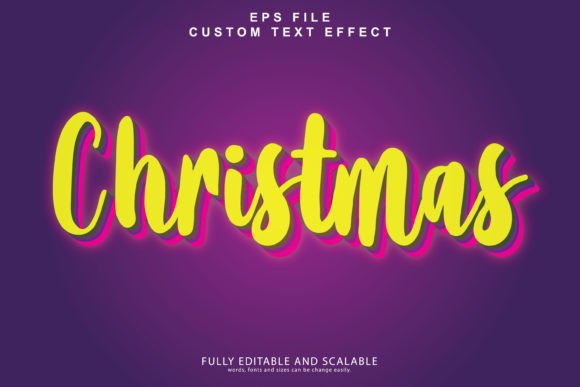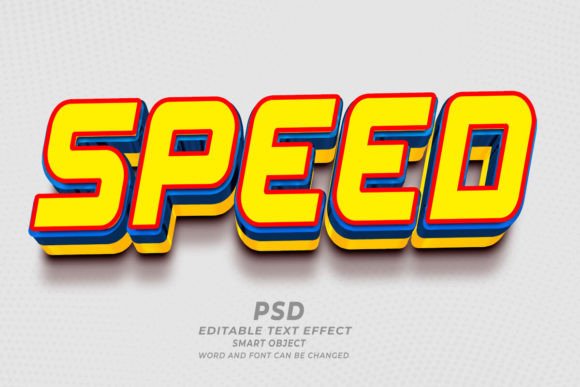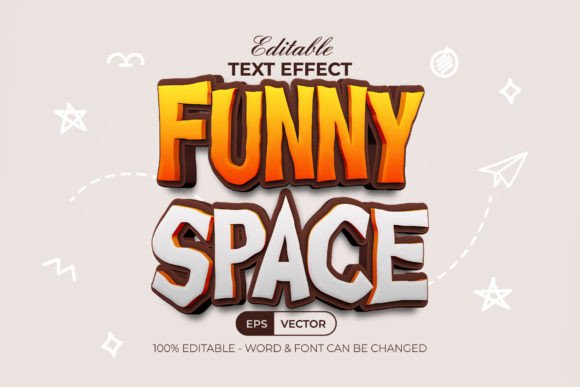
Mastering the Fun Text Effect 3D Style in Adobe Illustrator
In the fast-paced world of digital design, typography is often the first element that captures a viewer’s attention. Whether you are creating social media graphics, packaging designs, or promotional banners, the way your text looks can make or break the visual impact. This is where the Fun Text Effect 3D Style comes into play. It is not merely a font; it is a sophisticated graphic style designed for Adobe Illustrator that allows creators to apply complex, three-dimensional aesthetics to their typography with minimal effort. However, despite its ease of use, many designers—both beginners and seasoned professionals—make critical errors when integrating these effects into their workflows. Understanding how to properly utilize this tool can save you hours of manual editing and ensure your final output is polished and professional.
Understanding the Tool: It Is Not Just a Font
One of the most common misconceptions among new users is treating this product as a standard typeface. It is crucial to understand that the Fun Text Effect 3D Style is a set of Adobe Illustrator graphic styles. This distinction matters significantly for your workflow. A font changes the shape of the characters, but a graphic style applies attributes like color, stroke, gradient, and dimensionality to existing vector shapes or text. Because this item is ready in the graphic styles menu, you retain full control over the underlying text. You can retype, resize, or reshape your content without losing the effect. If you mistake it for a static font, you might find yourself unable to edit the spelling or adjust the kerning later, leading to frustration and wasted time.
Common Mistakes and How to Avoid Them
Even with user-friendly tools, poor execution can lead to subpar results. Here are some frequent pitfalls designers encounter when using 3D text effects and how you can avoid them to maintain high-quality standards.
Ignoring Layer Organization
While the package boasts well-organized layers, many users skip the step of reviewing the structure before diving in. When you apply a complex 3D effect, Illustrator creates multiple stacked objects to simulate depth and lighting. If you do not respect the layer hierarchy, you may accidentally move shadow elements separately from the main text, breaking the illusion of three-dimensionality. Always keep your layers panel open and locked where necessary. This ensures that when you move your text, the entire 3D structure moves cohesively. Taking a moment to understand the layer organization provided in the AI file will prevent disjointed visuals and make future edits much smoother.
Neglecting Color Mode Compatibility
This specific design feature utilizes RGB color settings. This is ideal for digital screens, web graphics, and social media content. However, a frequent and costly mistake is using these RGB-based effects for print materials without conversion. If you send an RGB file to a commercial printer, the colors may shift dramatically, resulting in dull or inaccurate prints. Before finalizing any project intended for physical production, check your document color mode. If you must use this effect for print, be prepared to manually adjust the colors to CMYK equivalents, keeping in mind that some vibrant neon or glowing effects may not reproduce exactly as they appear on screen. Planning your output medium early saves you from disappointing client presentations.
Overlooking Font Licensing and Availability
The package includes a "Read Me" text file with font download links, emphasizing that free fonts are used. While "free" sounds convenient, it often leads to oversight regarding licensing terms. Just because a font is free to download does not always mean it is free for commercial use. Some free fonts are restricted to personal projects only. Before you publish your design, open the included text file and verify the license of the specific font used in the demo. If you plan to sell your design or use it for a business client, ensure the font license permits commercial application. If not, substitute it with a similarly styled font that has the appropriate clearance. This simple check protects you from potential legal issues down the line.
Maximizing Efficiency and Editability
The true power of the Fun Text Effect 3D Style lies in its editability. Unlike rasterized images or flattened PSD files, this Illustrator-based approach allows for infinite adjustments. To get the most out of this feature, adopt a non-destructive workflow. Instead of expanding the appearance immediately, keep the text live for as long as possible. This allows you to correct typos, change phrasing, or experiment with different typefaces without rebuilding the effect from scratch. Only expand the appearance when you are absolutely certain of the final wording and layout. This practice keeps your file size manageable and your editing process flexible.
Furthermore, take advantage of the 100 editable text options mentioned in the features. Do not limit yourself to the default examples. Experiment by applying the graphic style to custom shapes or logos, not just standard alphanumeric characters. The effect works on any vector path, meaning you can create 3D icons, badges, or decorative elements that match your text. This versatility expands the utility of the purchase, giving you more value for your investment.
Technical Requirements and File Management
Before purchasing or downloading, ensure your software meets the requirements. This item is suitable for Adobe Illustrator CC or above. Users with older versions of Illustrator may find that certain graphic style features or appearance panel functions do not work correctly, leading to broken effects or missing attributes. Always update your software to the latest stable version to ensure compatibility. Additionally, the package includes an EPS file, an AI file, a JPEG preview, and the Read Me text. Keep all these files together in a dedicated folder. The JPEG preview is useful for quick reference, while the AI file is your working document. The EPS file serves as a backup for compatibility with other vector software if needed, though sticking to the native AI format is recommended for the best editing experience.
Making the Right Choice for Your Project
When evaluating whether this text effect suits your needs, consider the tone of your project. The term "Fun" implies a playful, energetic, and vibrant aesthetic. It is perfect for children’s products, party invitations, casual branding, or youthful marketing campaigns. However, it may not be appropriate for corporate reports, legal documents, or luxury brand identities that require understated elegance. Assess your target audience and brand voice before applying the effect. Using a playful 3D style in a serious context can undermine your credibility, while using a stiff, formal font for a fun event can fail to engage the audience. Context is key.
Finally, do not hesitate to reach out for support. The creator invites questions, which is a sign of a reliable resource. If you encounter issues with installation or rendering, contacting the seller can provide specific solutions tailored to the file structure. This level of support is invaluable, especially for beginners who might feel overwhelmed by the technical aspects of graphic styles.
In conclusion, the Fun Text Effect 3D Style is a powerful asset for any designer looking to add depth and personality to their typography. By understanding its nature as a graphic style, respecting layer organizations, checking color modes and font licenses, and maintaining a non-destructive workflow, you can avoid common pitfalls. These practices ensure that your designs remain professional, editable, and visually striking. Take the time to learn the tool properly, and it will become a staple in your creative toolkit, enhancing both your efficiency and the quality of your final output.